
A CLEAR START

Your Mac.
Your next listen.

A simple installation. A little setup. Then it is just you and your music.

Lucid 1.0.7

Start with 3 hours free.

Try Lucid with your headphones before buying. The installer is signed and notarized by Apple. No payment is needed to start the trial.

Apple Silicon · macOS 14.2 or later

Download for Mac

ZIP · 4.9 MB · Apple Silicon

How to install ↓

Three steps.
Then press play.

Pre-release screenshots. Select an image for a closer look.

01

Install Lucid

Open the downloaded ZIP, then open Lucid Installer-Uninstaller and choose Install Lucid. Confirm the administrator request from macOS. Lucid will be placed in Applications. If it is already installed, the button says Repair Lucid.
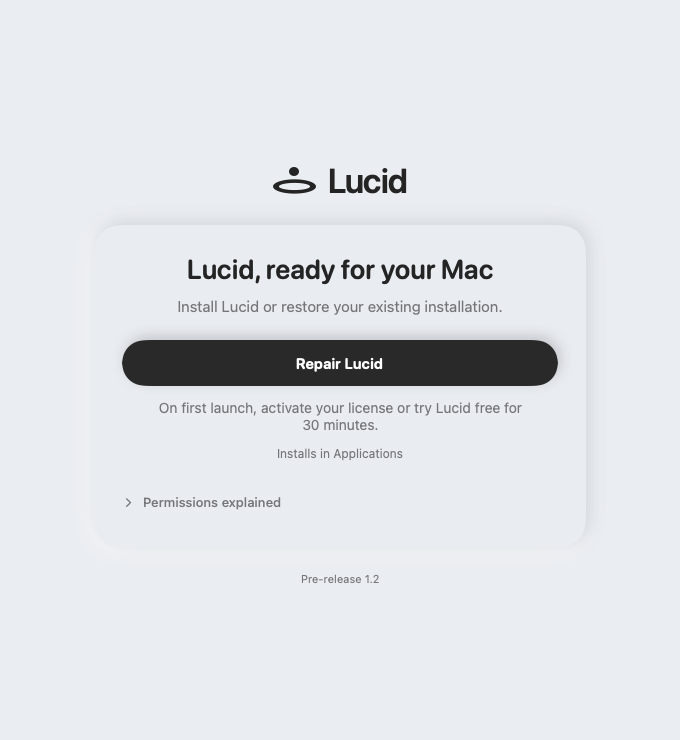

Lucid installer showing the Repair Lucid button on an existing installation
02

Choose how to begin

Open Lucid from Applications. Enter your license key, or choose the 3-hour trial and accept its conditions. The trial needs an internet connection.
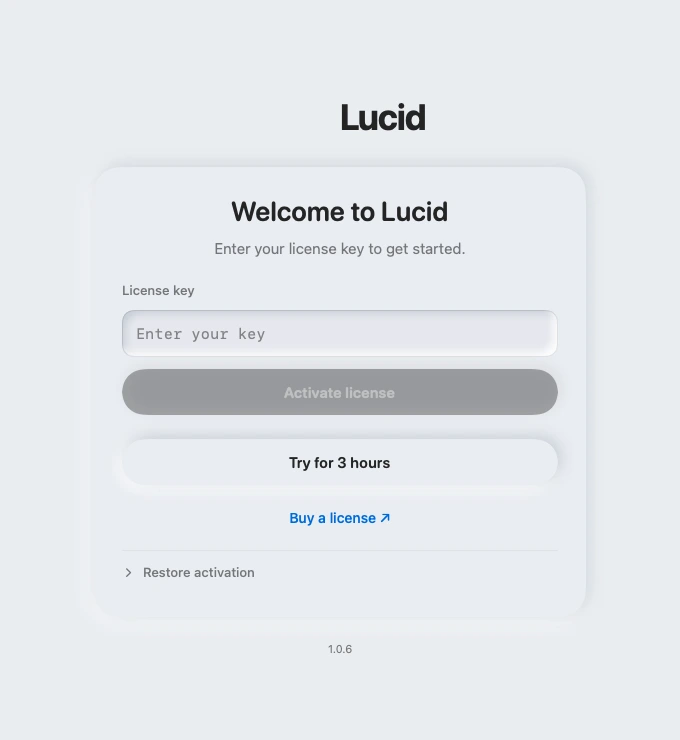
Lucid activation screen with license entry and Try for 3 hours
03

Connect. Choose. Listen.

Enable Lucid, connect compatible headphones and open Audio. Choose an available codec and quality setting. Follow the audio-access instructions if macOS asks for permission.
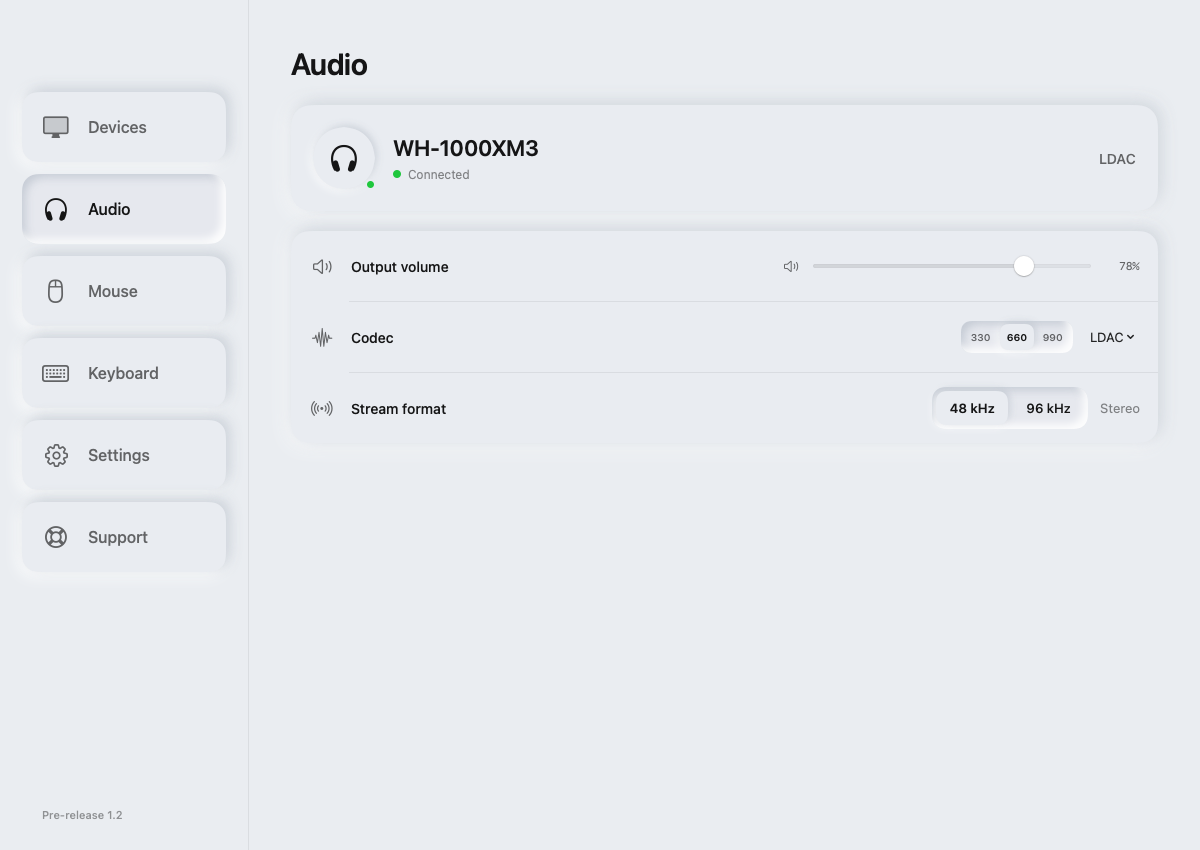
Lucid Audio screen with LDAC and stream format controls

Removing Lucid?

Please use Lucid Installer-Uninstaller to clean up Lucid. Moving only the app to the Trash leaves system components installed. Turn Lucid off, wait for System Bluetooth and fully quit it. Keep system Bluetooth on, open the downloaded installer, choose Remove Lucid, confirm and approve the macOS administrator request. Wait for the removal confirmation. Your license, preferences and trial history are preserved.

Your permissions.
Explained.

Access is requested for the features you choose. Here is what each request is for.

Administrator approval

The installer needs approval to install, repair or remove the app and its system components. A request from macOS during installation is expected. Your administrator password is entered into the macOS prompt, not into this website.

System audio access

Lucid needs access to the audio playing on your Mac so it can send that audio to your headphones. Depending on macOS, this appears under Screen & System Audio Recording or a similar audio-recording permission. Lucid does not save recordings or upload your audio.

Bluetooth access

Bluetooth access lets Lucid discover and work with nearby supported devices. Allow it when macOS requests it while you set up or use Bluetooth features.

Accessibility for keyboards and mice

When you use supported input devices through Lucid, Accessibility allows their input to reach your Mac. This is requested for input features. It is not a requirement for listening to audio, and Lucid does not store a history of what you type.

BEFORE YOU PAY

Your key.
In your inbox.

On the next page, select this checkbox before paying:

“Allow Lucid to contact me about my payment”

This lets Contra share your email with us. Your license key will arrive automatically within 5 minutes of successful payment.

Without this checkbox, you must contact delivery@lucidcore.app to request your key. Manual delivery takes up to 36 hours after your support request, not after payment.

If your key has not arrived after 5 minutes, check spam, then email us with your payment number.

On Contra, find the checkbox just above Pay.
Contra checkout: the unchecked Allow Lucid to contact me about my payment option is immediately above Pay, below Due today.